Device Setup
A MIDI keyboard is required in order to record practice sessions with Better Piano Practice. It's recommended that you also record audio for your practice sessions, if your keyboard and/or hardware allow for high qualtiy audio recording. Finally, you may opt to use a webcam to allow fingering predictions for the notes you play.
MIDI, audio input / microphone, and camera devices are only used during practice sessions. The controls for these devices appears in the top bar when you are on in the Practice View.
MIDI Keyboard
Better Piano Practice uses WebMIDI to communicate with your digital piano. If you've never used your digital piano with your computer or mobile device before, consult the manual for your keyboard to learn how to connect it. A physical USB connection is the most common, and generally the most reliable. Newer keyboards may support Bluetooth. Older keyboards with only a 5-pin DIN connector may require an adapter.
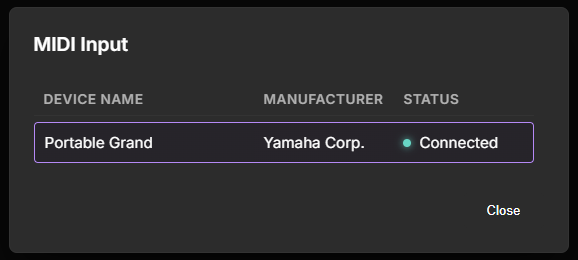
When you first select the "Practice" tab, you'll be asked to grant permission for BPP to access your MIDI devices. Once this permission has been granted, your MIDI keyboard should appear in the top bar; you can click the button to show available devices, and choose which keyboard to use if you have more than one.
Audio Recording
Capturing a synchronized audio track is highly recommended if your setup allows it, since it allows you to review your practice session exactly as it sounded when you played it. It also allows others, including your teacher if you have one, to listen to your playing even if they don't have the same digital piano that you do. This is especially important when working on phrasing and dynamics in a piece.
Clicking on the microphone button when on the practice page will allow you to select and optionally to test the audio input device used to record practice sessions. The first time you do this, BPP will request microphone and camera access from your browser. It is likely that there will be multiple audio input devices, so it's important to select the one that corresponds to your digital piano (as opposed to the laptop built-in mic, for example).
There are several configurations that allow for high quality audio recording while you are practicing:
-
USB audio interface + headphones. This requires a USB audio interface. Many models are available; examples include the Focusrite Scarlett 2i2, Behringer Xenyx 302 USB, and numerous others. True stereo support is highly recommended; some audio interfaces don't support stereo even if they have more than one input. You may need a specific cable or adapter to connect your keyboard and USB audio interface (e.g. 1/4" stereo jack -> dual XLR). Audio interfaces generally allow live monitoring of the input on the headphones - so you can hear yourself practice - while simultaneously allowing the audio to be recorded. As an added benefit, USB audio interfaces generally work with a wider range of headphones than some digital pianos.
-
USB audio interface + built-in speakers. If you prefer to practice without wearing headphones, you can connect the audio output of your keyboard to a USB audio interface as above, but configure your digital piano to enable the speakers even when an audio device is plugged in. Some digital pianos do not support this.
-
Audio capture over USB. Newer digital pianos allow both MIDI and audio to be recorded over USB. This can provide very high quality audio, with no impact to how you listen (headphones, speakers) while practicing. This may require drivers for your operating system, and will depend heavily on your keyboard. For example, the Yamaha P-145BT worked well on Windows after installing the Yamaha driver, but on Andriod devices, the audio was heavily distorted in all audio recording apps other than Yamaha's own.
If you only have an acoustic microphone available, you may want to select the "Disable Recording Audio" option, especially if the microphone can't pick up your piano well. If you practice with headphones, you should choose this rather than recording silence! Practice sessions without recording audio can still be heard during review, either by replaying the MIDI notes via your digtial piano, or using the built-in software synthesizer.
Fingering Camera
A unique feature of BPP is the ability to use a webcam, positioned above the keyboard, to predict and record which hand and finger played each note during practice. This can in turn be used to identify if you're not using the correct fingers when playing scales, arpeggios, or pieces that have fingering for certain notes.
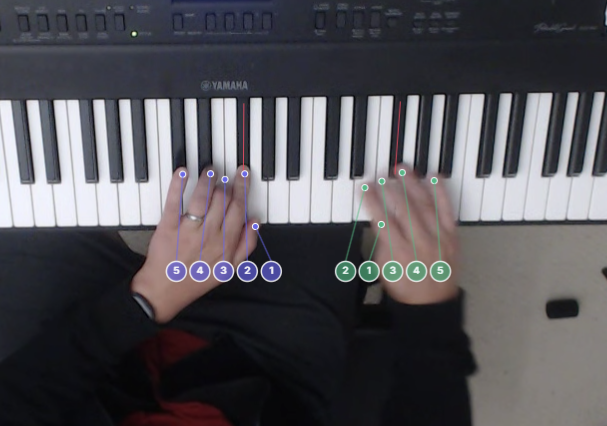
This feature is still experimental, and has a number of requirements and limitations that may make it impractical for you. Specifically:
- A webcam is required that has a top-down view of the whole keyboard. The webcam must support 720p resolution (though almost all external webcams in the last 10 years do).
- The keyboard should be oriented horizontally within the webcam's field of view, but the webcan may be in front of or behind the keyboard; the image will be flipped automatically if needed.
- The feature only works on desktop, and requires a moderately powerful GPU. An NVIDIA RTX 3060 is approximately the minimum needed by this feature.
- So far, only 30 fps operation has been tested, as very few webcams support 60fps (and this would require 2x the GPU performance). Work is in progress on this, but wow, have you seen GPU prices?
- In our environment, accuracy is usable high for slow and moderate play (e.g. 1/16th notes at 80bpm or less), but drops at higher speed and with fast hand movements; at 30 fps the raw camera feed is simply blurred.
Note: Video is not recorded and does not leave your PC! This is due both to the size and processing overhead of video, but also because BPP aims to be as privacy-preserving as possible. Correctly configured audio captures only the digital piano; it is harder to ensure this for video. For that reason, all processing happens on your machine, so only the predicted finger for each note is sent to the server.
If you do try the feature out, we'd love your feedback on how it works in your environment.