Reviewing Practice
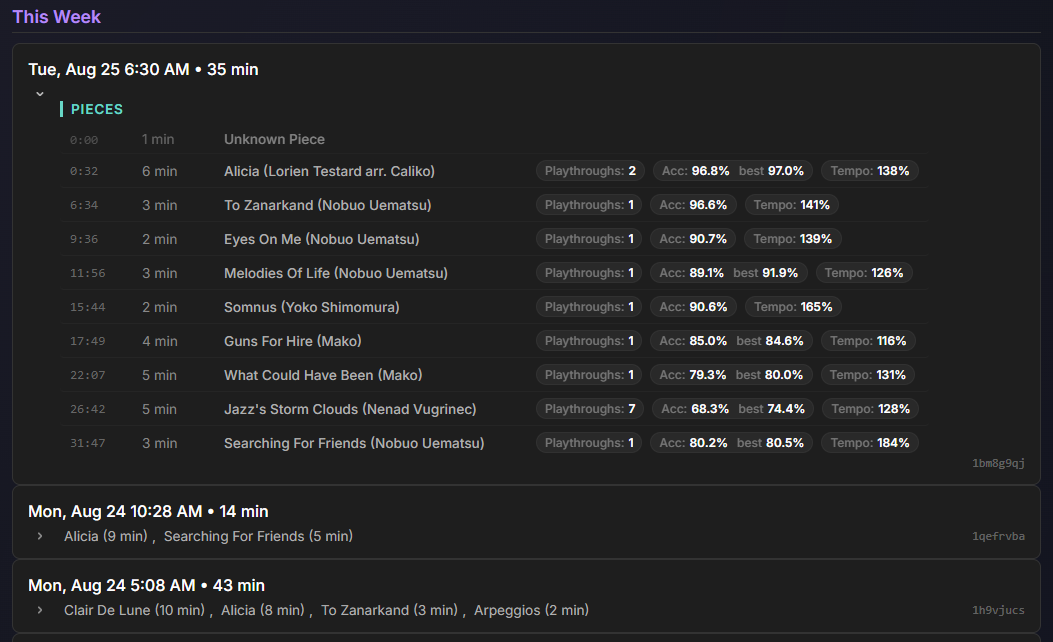
The Review page allows you to see past practice, with a quick overview of what you played during each session, and to jump into a session to explore how you did. You can also take a number of actions on past sessions from this page.
Managing Practice Sessions
The following actions are available on past sessions:
- Clicking on the session switches between a one-line summary and a more detailed overview of the practice session. By default, only the most recent session is expanded.
- The play icon switches to playback mode for the selected session. From the expanded view, it is also possible to jump directly to playback for a specific segment by clicking on it.
- The share icon allows you to adjust sharing permissions for the session. For more informationl, see Sharing.
- From the menu dropdown, Download MIDI and Download Audio allow you to download the underlying notes (in MIDI format) and audio (if recorded) for your practice session.
- The "Re-run Analysis" menu item re-runs detection of what you played; this is generally useful only if you added pieces to your music library that were played in an earlier practice session.
- Finally, Delete Session removes this session and all data associated with it. There's no undo, so use with care!
Playback
Once you enter playback mode, either using the play icon on the session list, or by clicking on a segment name, you'll see the playback view for that session.
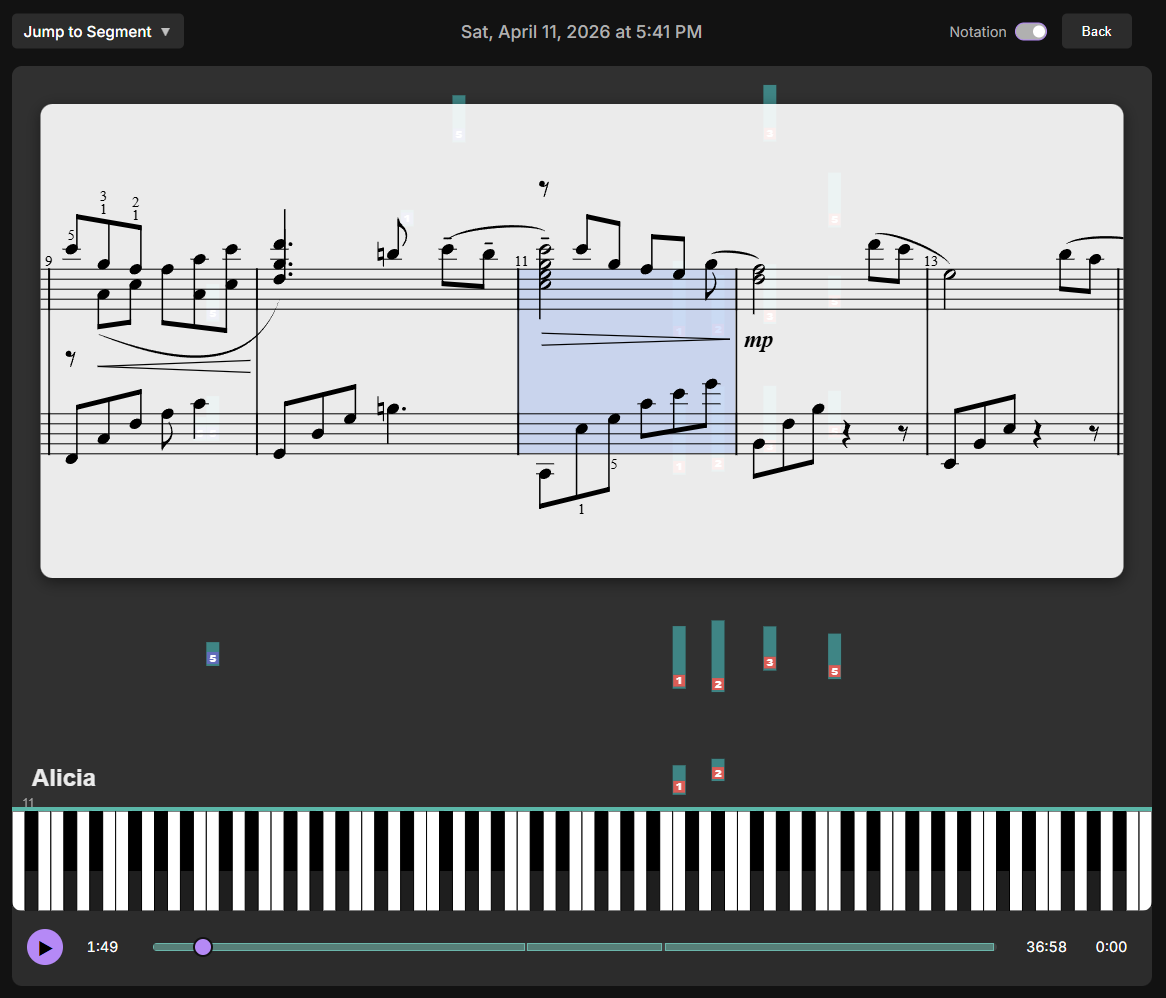
- You can navigate within the session by scrolling up and down, or using the scrubber in the player controls at the bottom of the window.
- The "Jump to Segment" dropdown allows you to quickly jump to any segment in the session.
- The selector in the top right allows you to control whether to show notation, information (BPP's analysis of what was played), or neither (which will just show the notes played).
- If you click on a specific note, you'll be able to add a comment, either for your own reference, or for your teacher (or student).
- You can also use a specific note to set start/end markers, in case you want to manually label a segment that isn't detected automatically.