Sharing
Sharing is completely optional - and by default, your practice sessions are not shared. However, you might wish to seek feedback from a teacher or other reviewers on your practice sessions; in some cases, you might even want to share your practice broadly to anyone willing to provide feedback. BPP's sharing system is designed to facilitate this. Two concepts are critical to understand regarding sharing: session access, and trusted contacts.
Session Sharing Permissions
Every session has it's own sharing setting, accessed via the share icon from the Review page listing your practice sessions:
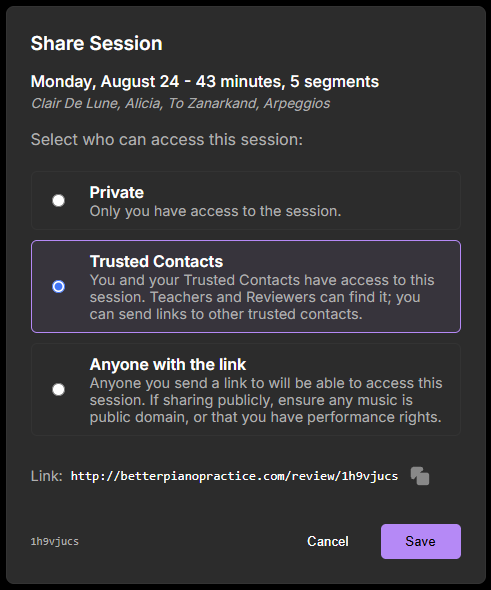
To provide a little more detail on each sharing setting:
- Private: Only you have access to this session. Even if you've designated a teacher, they won't be able to access this session - even if you send them a link to it.
- Trusted Contacts: Only you, and people who you have explicitly added as a Trusted Contact, will be able to access this session. Other users of BPP, and anonymous users who have not signed in, will be unable to access this session. Trusted contacts who have link access only won't automatically be able to find this session; you'll still need to send them a link (outside of BPP).
- Anyone with the link: This setting allows anyone with the link to access this session. If you send a link to a friend, and that friend posts the link on a public forum, anyone who find the link there will be able to access it. If you change the sharing setting to "anyone with the link", a security key is added to the link (so that links can't be easily guessed); the original link without the security key will only work for yourself and trusted contacts.
Only you as the owner of a session can change its sharing settings, or delete the session.
Sharing Settings
Sharing Settings can be access from the user profile icon, by clicking Settings, and scrolling down to the Sharing section.
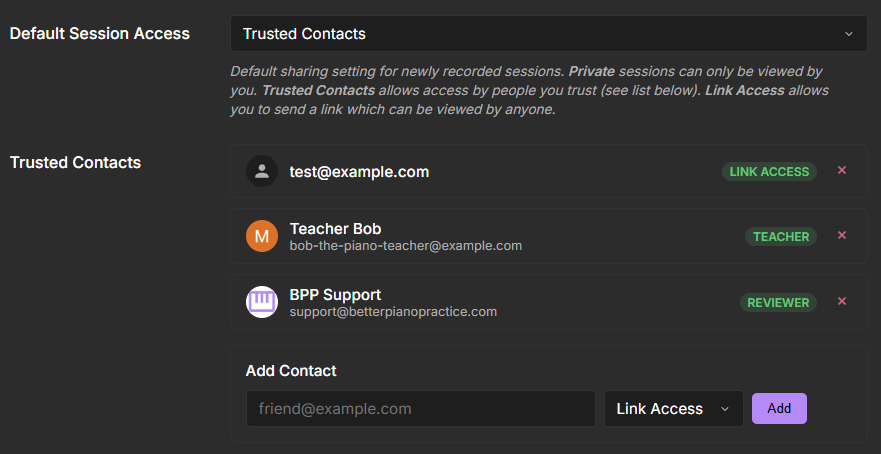
The Default Session Access setting determines the sharing setting, as described above, for newly created sessions. When you first create your user account, this defaults to Trusted Contacts, so that if you add a teacher or other trusted contact, they'll be able to see your past practice. You can set this to the setting that's best for you; however, the setting is not retroactive, and won't change the sharing setting on past sessions.
Trusted Contacts shows those you have designated as a trusted contact, along with the permission level you have granted them. There are three permission levels for trusted contacts:
- Link Access: This allows the trusted contact to view sessions, as long as they are not set to Private, when they have a link to the session. They cannot discover other sessions through the app; you'll need to share the link of any session you wish them to look at.
- Reviewer: This grants link access, but also allows them to see a list of all your non-Private sessions. This can be useful for people who regularly give you feedback, so that you don't have to send a link each and every time you practice.
- Teacher: This is the highest access level; in addition to what's granted to a reviewer, a teacher can also view and create goals for you, view the insight pages the summarize your practice, and assign music into your music library.
In order to add a trusted contact, you need to know their email address; if they accept your invitation, they'll also see your email address. To avoid spam, no email or other notification is sent when you invite a trusted contact; they need to log into BPP to see and accept your invitation.